SLIDE 01
Preparing the Acuity data
After receiving access to the Acuity app data, I extracted and cleaned the records for consistency. I then used Excel formulas to separate fields and create new data points.
PROJECT / Personal / Excel
Exploring a salon’s financial data through Excel and Tableau dashboards to examine potential growth and loss.
01 / THE QUESTION
Could a closer look at financial data help explain potential business growth and loss beyond the owner’s existing forecasting app?
02 / THE APPROACH
03 / KEY INSIGHTS
Grouping services revealed an observed association between curly hair services and higher profit, followed by coloring services. Business context helped make the pattern interpretable; the analysis does not establish a causal effect.
04 / OUTCOME & IMPACT
Created an Excel dashboard suite for exploring forecasts, service performance, daily revenue, and customer activity, plus a Tableau version. These views gave the owners ways to explore their data; no measured revenue increase or forecast-accuracy result is claimed.
THE PROJECT IN DETAIL
SLIDE 01
After receiving access to the Acuity app data, I extracted and cleaned the records for consistency. I then used Excel formulas to separate fields and create new data points.
SLIDE 02

I compared several variables, initially focusing on hours worked and customer counts. After consulting my contact about how services were grouped, I observed a pattern: curly hair services were associated with higher profit, followed by coloring services. This was an observed relationship in the data, not evidence of causation.
SLIDE 03

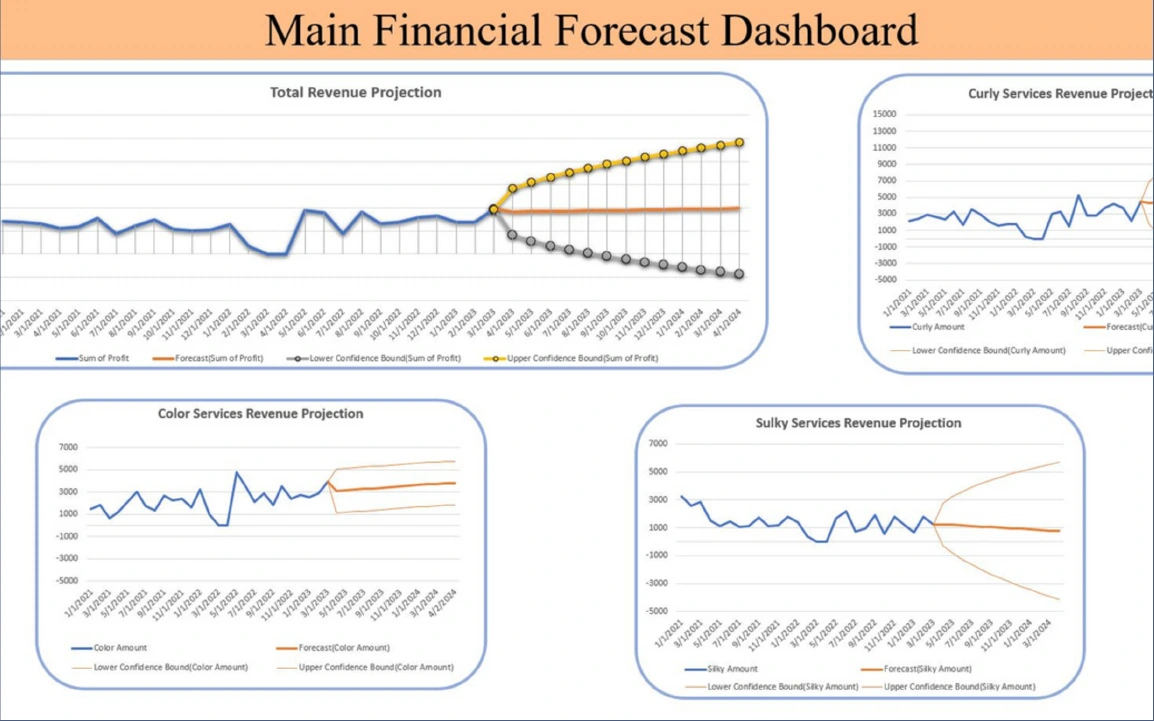
I created a dashboard to explain the service-group findings and give the owners more relationships to explore. The home page shows financial projections, with separate views for each service group alongside total revenue.
SLIDE 04

I embedded macros in the navigation icons to make it easier to move between the Excel dashboard pages. The comb icon opens the services dashboard, where users can review counts, total time, and total revenue by service group, filtered by month and year.
SLIDE 05

At the owners’ request, I added a daily revenue view. A line chart shows revenue over time, with slicers for the service group and specific service type, plus a timeline filter below the graph.
SLIDE 06
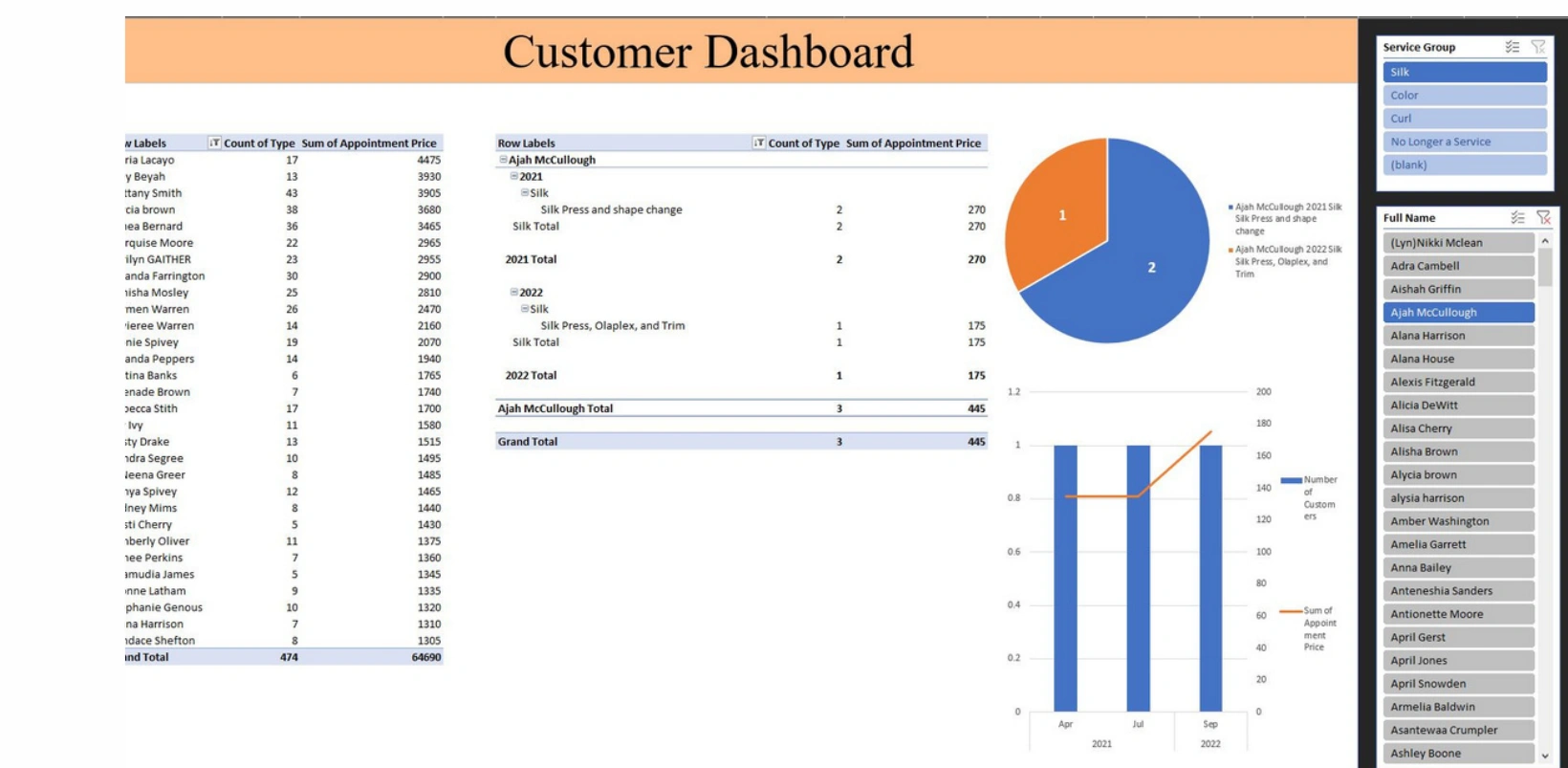
For the final Excel page, I created a customer dashboard showing the top 30 customers by total spending, along with the services each customer requested on a given day.
SLIDE 07

After completing the Excel dashboard, I created a simpler Tableau version to become familiar with the program. I found joining tables easier in Tableau, while the dashboard interface felt more intuitive to me in Power BI.
Screenshots from Gerry Taylor II’s Financial Projections presentation. Slide descriptions have been lightly edited for clarity.
Get in touch ↗